Managers: Cut Missed Shifts and Payroll Errors With Workforce Notifications
Operations guide for managers to set, schedule and measure workforce notifications. Focus on safety, opt in rates and influenced opens.
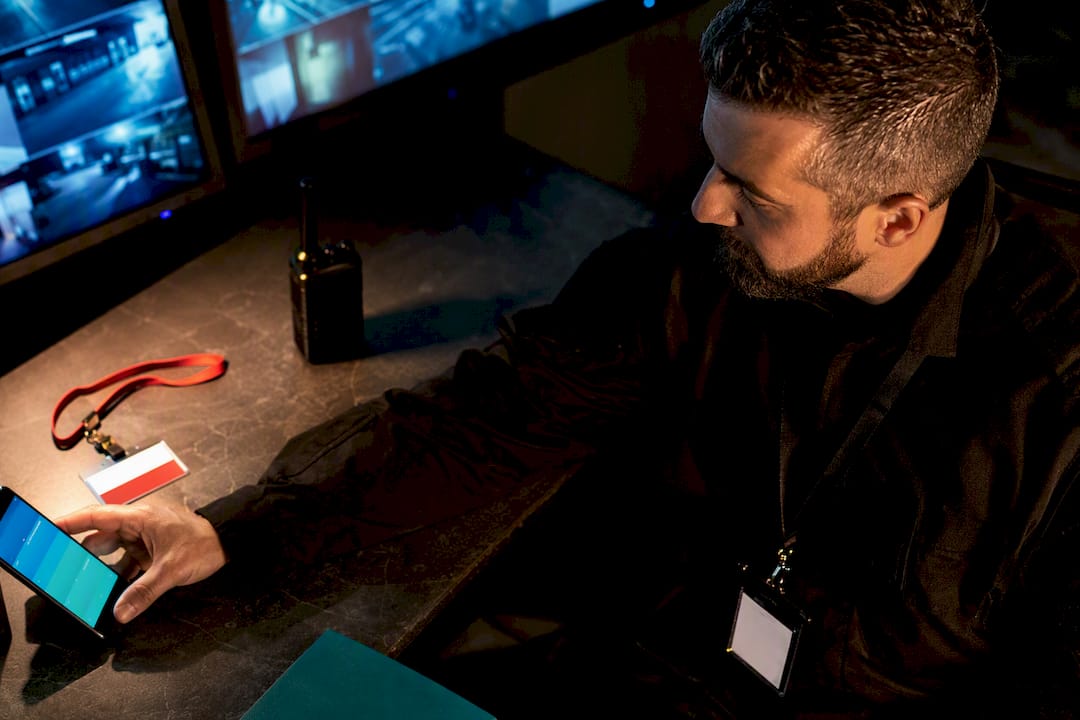
Workforce notifications are the automated push, email and SMS alerts that tell staff about schedule changes, shifts, payroll and safety events without a manager picking up the phone. The single action to take today: open your platform’s channel settings, confirm which alerts trigger which channel, and switch on scheduling for anything safety or payroll related. Then start tracking opt-in rate and influenced opens, not just delivery counts.
TL;DR:
- Critical alerts like safety incidents and shift cancellations should always escalate to a secondary channel if unread within a few hours.
- Sending tailored notifications to staff segments, such as on-call or part-time workers, reduces fatigue and improves engagement.
- Tracking opt-in rates, influenced opens, and actual resolution events provides a more accurate measure of notification effectiveness than delivery counts.
- Using preset or custom delivery windows ensures alerts arrive at appropriate times, avoiding disruptions during late or early hours.
- Templates, audit logs, and precise routing rules help streamline communication, ensure compliance, and facilitate onboarding for new admin staff.
Table of Contents
- How to configure notification settings for managers and staff
- Which channel should you use for push, email and SMS alerts?
- How do scheduling presets and delivery windows work?
- Writing notifications staff actually read and act on
- Segmenting staff without triggering notification fatigue
- Which metrics actually prove workforce notifications work?
- Keeping templates, routing and audit trails organised
- Fixing common notification problems fast
- The Timeprof view on integrated workforce notifications
- Try Timeprof for workforce notifications that connect to your rota
- Sources
How to configure notification settings for managers and staff
Most workforce platforms bury notification controls inside admin settings rather than the main dashboard, so start there. You are usually looking for a section labelled “Notifications”, “Alerts” or “Communication Rules”, separate from staff profile settings and separate from messaging.
Once you find it, set rules at two levels: the tenant level (organisation-wide defaults) and the role level (who receives what). A cleaner administrator overrides the tenant default for specific roles, which stops on-call security staff getting the same alert cadence as part-time hospitality workers.
Practical steps for getting this right:
- Enable channels per notification type first, not per person; blanket “all channels for everyone” settings cause the fatigue that leads to opt-outs later.
- Set routing rules so critical alerts (safety, payroll errors, shift cancellations inside two hours) always escalate to a second channel if the first goes unread.
- Choose sensible default frequency limits before staff onboard, since retrofitting caps after complaints start is far harder than setting them upfront.
- Test the settings with one pilot site or team before rolling changes out organisation-wide.
Which channel should you use for push, email and SMS alerts?
Not every message deserves the same channel. Match urgency to channel rather than defaulting to whatever is easiest to configure.
- High urgency, time-critical: push notification with SMS as a fallback. Shift cancellations inside a few hours, safety incidents, or a site closure all belong here.
- Medium urgency, needs a record: email or in-app notification. Payroll confirmations, rota published for the week ahead, policy updates.
- Low urgency, informational: in-app announcement or digest. General company news, non-urgent reminders.
Two constraints shape this mapping. Push requires the reader’s explicit opt-in on iOS and Android, so a lapsed permission means the alert silently fails to arrive. SMS carries a cost per message and needs a genuine business justification (payroll errors, safety) rather than routine chatter, or staff start switching phones off during shifts to escape it.
How do scheduling presets and delivery windows work?
Delivery windows stop operational alerts becoming a 2am intrusion. Most platforms offer scheduling presets such as 24/7, weekdays only, or standard working hours, alongside custom schedules built around specific site shift patterns.
- Choose a preset that matches the alert type: safety alerts often run 24/7, while shift swap requests might only need standard hours.
- Build a custom schedule where a preset doesn’t fit, such as a 24 hour care site with staggered night cover.
- Decide what happens when an alert triggers outside its active schedule. The sensible default is to record the event and re-send once the window reopens, rather than dropping it silently.
- Add throttling or batching rules so five related events (a whole team’s shift swaps, for instance) collapse into one grouped notification instead of five separate pings.
Writing notifications staff actually read and act on
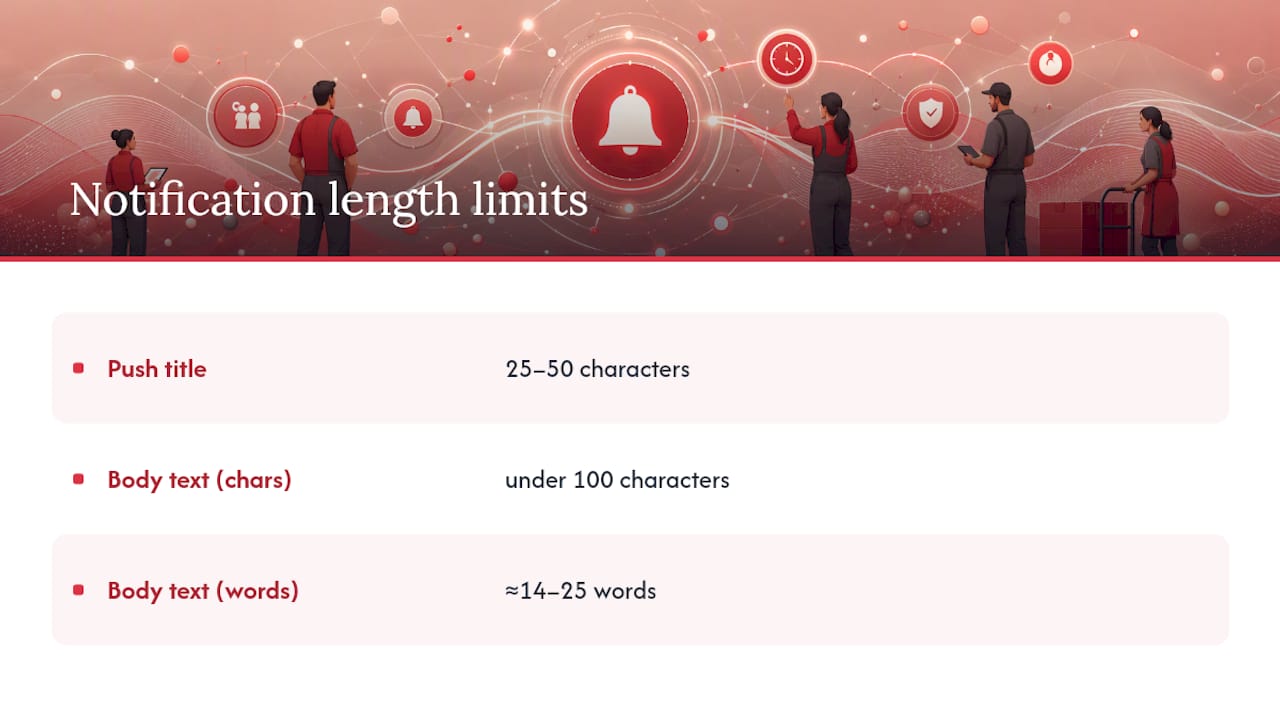
Copy decides whether a notification gets opened or swiped away, and length matters more than most managers assume. Keep push titles between 25 and 50 characters, with body text under 100 characters or roughly 14 to 25 words.
Pro Tip: Write the body text first, then trim the title to match. Titles written before the body tend to run long and get cut off on lock screens.
Apply the three-question rule to every alert before it ships: what happened, what it concerns, and what the reader must do, all answerable within two seconds. A notification reading “Shift update” fails all three; one reading “Tuesday 9am shift moved to 11am, tap to confirm” passes.
Notifications with a working deep link that opens the exact shift, request or timesheet screen see far stronger completion than ones that dump the reader on a generic home screen.
Every actionable alert needs a button or deep link straight into the relevant record. Landing someone on the app’s homepage after a “your leave request needs review” alert is close to guaranteeing they ignore it next time.
Segmenting staff without triggering notification fatigue
Sending every alert to every employee is the fastest way to burn through goodwill and opt-outs. Segment by role and status instead:
- On-call staff get urgent shift and callback alerts others don’t see.
- Managers get escalation and approval notifications line staff never need.
- Part-time employees get a lighter touch, since they’re not checking the app daily.
- Site-based teams get location-specific announcements rather than organisation-wide noise.
Before the native permission prompt appears, show a brief in-app explanation of what staff will receive and why. A push primer like this measurably lifts opt-in rates compared with firing the OS prompt cold. Pair that with per-segment frequency caps and granular toggles by notification type, so a warehouse worker can mute non-urgent announcements while keeping safety alerts live.
Which metrics actually prove workforce notifications work?
Delivery rate tells you the message left the server. It tells you nothing about whether anyone read it or acted on it, which is why action-based delivery and influenced opens matter more than raw send counts.
Track these instead:
- Opt-in rate by channel and segment, watched for sudden drops after a policy or copy change.
- Direct and influenced opens, meaning both taps on the notification and app sessions that follow one shortly after.
- Conversion or resolution events, such as a shift swap actually confirmed or a timesheet actually submitted.
Run small tests rather than guessing. Behavioural segmentation, automated send journeys and send-time testing together lift relevance and retention, so trial one variable at a time: subject line, send time, or which segment gets a message first.
Keeping templates, routing and audit trails organised
Recurring notices, rota published, payroll confirmed, onboarding reminders, deserve a saved template rather than a fresh message every week. Consistent wording also makes staff faster at recognising what an alert needs from them.
- Build a template library for repeat notices, with variables (name, shift time, site) filled automatically.
- Keep an audit log of every sent notification for compliance review and dispute resolution later.
- Set routing rules that respect work versus personal numbers, particularly for SMS, since sending shift alerts to a personal line without consent creates real friction.
Templates also make onboarding new admin staff faster; they inherit a working system rather than writing every notice from scratch, a principle covered in more depth in a manager’s guide to announcement systems.
Fixing common notification problems fast
Most delivery failures trace back to one of three causes: stale contact data, a lapsed consent status, or a channel outage the delivery report already flagged. Check all three before assuming the platform itself is broken.
- Cross-check the delivery report against the staff member’s current opt-in status; a re-issued device or new phone number often breaks silently.
- If deep links land on a generic screen instead of the specific record, the link template itself usually needs rebuilding, not the whole notification.
- For events triggered outside an active delivery schedule, confirm the platform recorded and queued a resend rather than discarding the alert.
The Timeprof view on integrated workforce notifications
Notifications work best when they’re not a bolt-on system fighting for attention against five other apps. Timeprof ties alerts directly to the rota, clocking and compliance data already in the platform, so a shift change fires a notification automatically rather than needing a manager to remember to send one separately.
That matters most in care, security and hospitality, where a missed shift swap or an unacknowledged safety alert has real operational consequences, not just an annoyed employee. A geofenced clock-in miss, for instance, can trigger an immediate alert rather than surfacing three days later in a report nobody reads until payroll runs.
The practical checklist stays simple: enable the right channels, schedule around real working hours, write copy that answers what happened and what to do, then measure opens rather than sends. Everything else is refinement.
— Michael
Try Timeprof for workforce notifications that connect to your rota
Everything covered above, channel settings, scheduling windows, templates, audit logs, comes built into the platform rather than bolted on as a separate messaging tool. Alerts fire automatically from real shift, clocking and compliance events, so managers spend less time chasing confirmations and more time on the parts of the job that actually need a human.
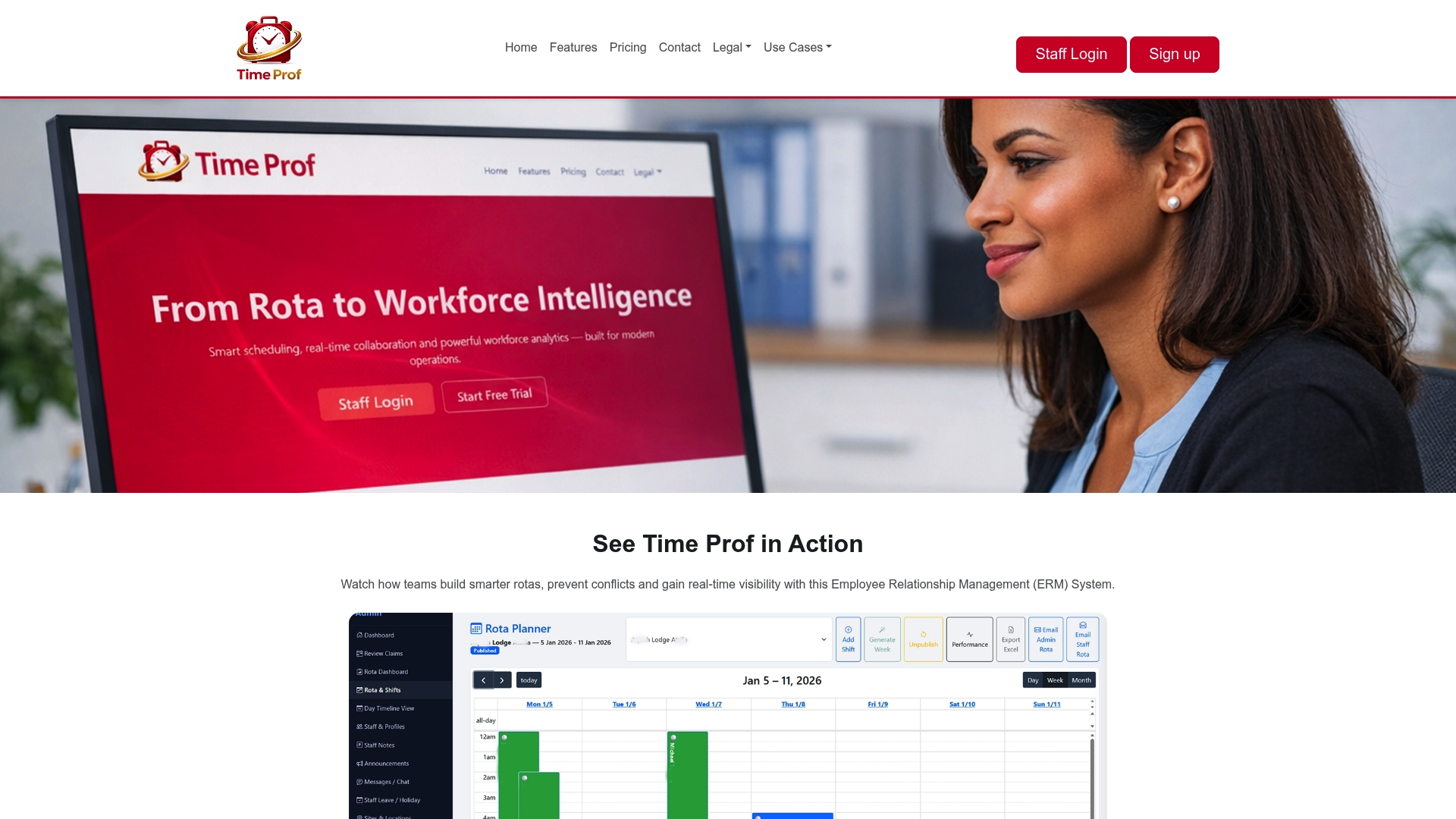
Care providers, security firms, hospitality groups and cleaning businesses use it for exactly this: fewer missed shift swaps, fewer payroll disputes, and a single audit trail when something needs checking later. If your current setup means staff still find out about schedule changes from a group chat, it’s worth seeing the difference a connected system makes. Visit the Timeprof workforce management platform to book a demo or start a trial and see how notifications look when they’re tied to the rest of your operation.
Sources
- OneSignal: push notification best practices (2026)
- Notification UX: 8 best practices (2026)
- TradingView: notification schedule for alerts
- Pushwoosh: 23 push notification best practices (2026)